

Claude Code for JetBrains Configuration Guide
¶ 1. Obtain API Key
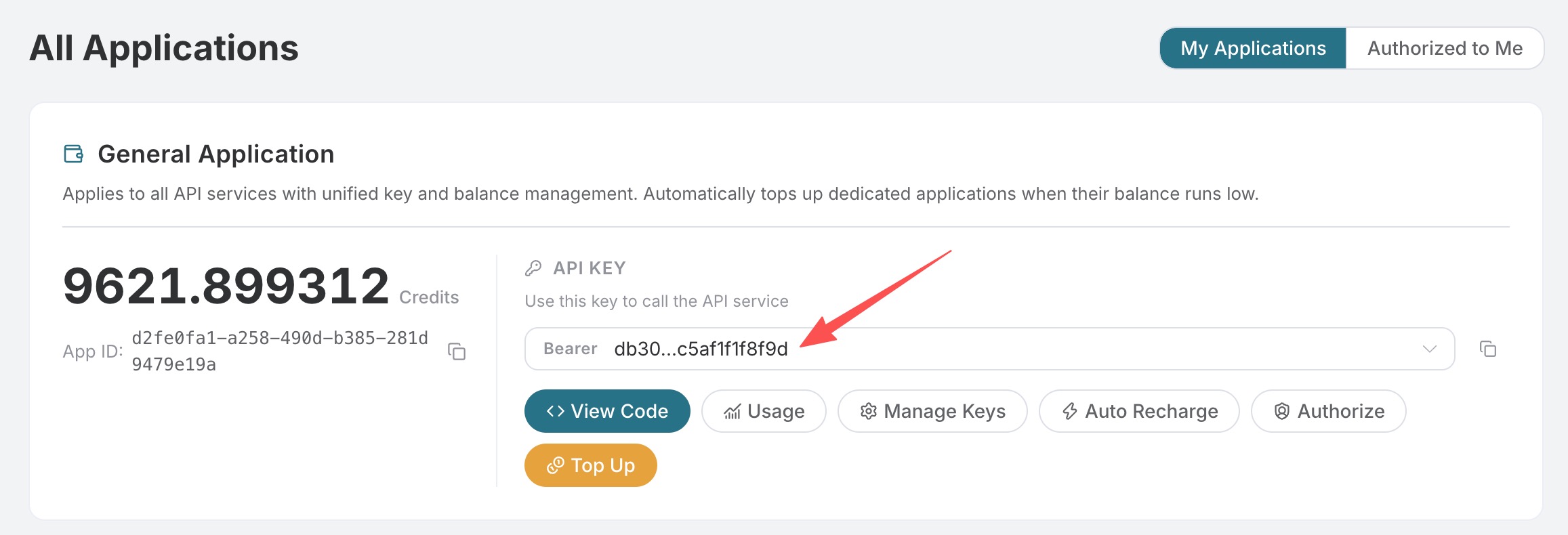
Open the AI 聚合|元宪智能 application list, go to the available applications, and copy the API Key.
¶ 2. Install CLI and Plugin
First, install the Claude Code CLI.
macOS / Linux / WSL:
curl -fsSL https://claude.ai/install.sh | bash
claude --version
Windows PowerShell:
irm https://claude.ai/install.ps1 | iex
claude --version
Then install the Claude Code plugin from the JetBrains Marketplace and restart the IDE. The plugin calls the local claude command; if prompted that the command cannot be found, fill in its full path in Settings → Tools → Claude Code.
¶ 3. Configure AI 聚合|元宪智能
Set in the environment where JetBrains backend is launched.
macOS / Linux / WSL:
export ANTHROPIC_BASE_URL="https://api.yxai-tech.top"
export ANTHROPIC_AUTH_TOKEN="your API Key"
unset ANTHROPIC_API_KEY
Windows PowerShell:
$env:ANTHROPIC_BASE_URL = "https://api.yxai-tech.top"
$env:ANTHROPIC_AUTH_TOKEN = "your API Key"
Remove-Item Env:ANTHROPIC_API_KEY -ErrorAction SilentlyContinue
You can also use the ignored .claude/settings.local.json in the project:
{
  "env": {
    "ANTHROPIC_BASE_URL": "https://api.yxai-tech.top",
    "ANTHROPIC_AUTH_TOKEN": "your API Key"
  }
}
For Remote Development, configure and install the plugin on the remote Host; WSL users can set the Claude command to wsl -d Ubuntu -- bash -lic "claude".
¶ 4. Verification
Run claude from the integrated terminal in the IDE, or start an external terminal and enter /ide. After a successful connection, have Claude reply OK, then read a test file and check the request in AI 聚合|元宪智能 usage history.
If the plugin fails to start, first run claude --version in the same terminal; if you get a 401, check the actual inherited environment variables of the backend and the old ANTHROPIC_API_KEY.