SeeDream Images Generation API Integration Guide
This article will introduce an integration guide for the SeeDream Images Generation API, which allows you to generate official SeeDream images by entering custom parameters.
¶ Application Process
To use the SeeDream Images Generation API, first go to the AI 聚合|元宪智能 Console to obtain your API Token and keep it for later use.
If you have not logged in or registered yet, you will be automatically redirected to the login page and prompted to register and log in. After completing the process, you will automatically return to the current page.
One API Token can be used to access all services on the platform, so there is no need to apply for each service separately. A free quota will be provided upon your first application, allowing you to try the service for free. When the quota is insufficient, you can recharge your general balance in the Console.
📘 Full Documentation: SeeDream Images Generation API →
¶ Model Selection
| Model | Applicable Scenarios |
|---|---|
doubao-seedream-5-5-261028 |
Multi-turn editing, text-to-transparent image generation, multi-reference transparent image editing, layer separation, and text layer recognition |
doubao-seedream-5-0-flash-260915 |
Low-latency single-image generation, multi-reference image editing, transparent image editing, and layer separation |
doubao-seedream-5-0-pro-260628 |
Single-image generation, fine-grained editing, transparent image editing, and layer separation |
doubao-seedream-5-0-lite-260128 |
Single images, image sets, streaming output, and web search |
doubao-seedream-4-5-251128 / doubao-seedream-4-0-250828 |
Previous versions of image generation and editing |
5.5 and 5.0 Flash use the same POST /seedream/images endpoint, and both support 1K, 1.5K, and 2K resolutions, as well as up to 10 reference images. The layer decomposition tasks of both models accept only one image and return URLs. For 5.5, you can set layer_decomposition_options: {"max_images": 12, "text_recognition": true}. Up to 100 images can be generated (including the base image), and recognized text layers will return line-by-line text and styles in data[].text_recognition. 5.0 Flash returns a maximum of 1 base image and 16 layers.
5.5 supports directly generating transparent PNG images using background: "transparent". Transparent image editing with 5.0 Flash requires a reference image with an alpha channel. 5.5 charges according to the pixel tier of successfully generated images, with an additional 0.13 Credits charged for each input reference image. 5.0 Flash charges 0.31 Credits for each successfully generated image, and reference images are free. Layer decomposition is charged according to the actual number of successfully generated images, including the base image. See Real-Time Pricing.
¶ Basic Usage
First, let's understand the basic usage. You can obtain the processed results by entering the prompt prompt, generation behavior action, and image size size. First, you need to simply pass an action field with the value generate. Then, you also need to enter a prompt. The specific content is as follows:

As you can see, we have configured the Request Headers, including:
accept: The format of the response result you want to receive. Here, enterapplication/json, which means JSON format.authorization: The API key used to call the API. After applying for it, you can directly select it from the dropdown list.
Additionally, we have configured the Request Body, including:
prompt: The prompt.model: Please enter the complete model ID from the table above.image: Input an image URL, Base64 string, or array. 5.5, 5.0 Pro, and 5.0 Flash support up to 10 reference images.size: Resolution tier orwidthxheight. 5.5, 5.0 Pro, and 5.0 Flash support1K,1.5K, and2K. 5.0 Lite supports2K,3K, and4K.sequential_image_generation: Image sets: A set of related images generated based on the content you input.doubao-seedream-5-0-lite-260128,doubao-seedream-4-5-251128, anddoubao-seedream-4-0-250828support this parameter. The default isdisabled.stream: Controls whether streaming output mode is enabled.doubao-seedream-5-0-lite-260128,doubao-seedream-4-5-251128, anddoubao-seedream-4-0-250828support this parameter. The default isfalse.response_format: Specifies the return format of the generated image. The default isurl, andb64_jsonis also supported.watermark: Whether to add a watermark to the generated image. The default istrue.output_format: The output format can bejpegorpng. 5.5 defaults to PNG, while 5.0 Pro/Flash/Lite default to JPEG.tools: Configures the tools that the model needs to call. Currently,web_search(web search) is supported. Only Seedream 5.0 Lite supports this feature.optimize_prompt_options: Prompt optimization configuration. 5.0 Pro supportsstandard/fast; 5.5, 5.0 Flash, 5.0 Lite, and 4.5 only supportstandard; 4.0 supportsstandard/fast.background: Supportstransparentandopaque. 5.5 additionally supportsauto. Transparent output uses PNG.layer_decomposition: Supported by 5.5, 5.0 Pro, and 5.0 Flash. When set totrue, you must input one PNG/JPEG image. You can omitpromptto automatically decompose the image, or use natural language/<bbox>to specify elements.sizesupportsauto/1K/1.5K/2K. This mode cannot be used together with image sets, streaming, web search, orbackground.callback_url: The URL for receiving callback results.async: Whether to process requests in asynchronous mode. When set totrue, the API immediately returns atask_idwithout requiring acallback_url. You can then poll/seedream/tasksto retrieve the results.
After making your selections, you can see that the corresponding code is also generated on the right, as shown in the figure:
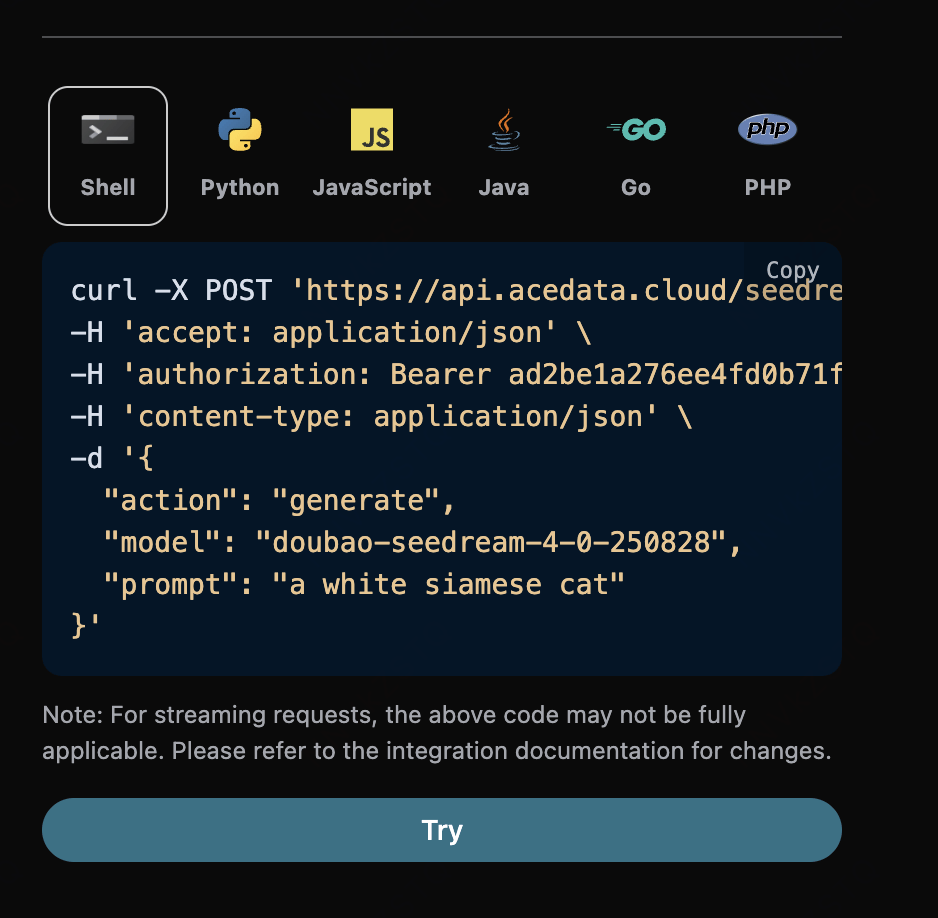
Click the "Try" button to perform a test. As shown in the figure above, we will obtain the following result:
{
  "success": true,
  "task_id": "80ceeed1-17d4-4eb7-82e0-18b34290f36e",
  "trace_id": "96b7fdc8-0fc8-4e2e-82a9-83c0a82f0a08",
  "data": [
    {
      "prompt": "A single matte blue cube centered on a clean white studio background, neutral lighting",
      "size": "2048x2048",
      "image_url": "https://cdn.acedata.cloud/assets/examples/seedream/db93b46e-c302-4676-8a11-63f0ba638a27-1c6f66f6b7e8.jpg"
    }
  ]
}
The returned result contains multiple fields, which are described as follows:
success: The current status of the video generation task.task_id: The current video generation task ID.trace_id: The current video generation trace ID.data: The list of results for the current image generation task.image_url: The link to the current image generation task.prompt: The prompt.size: The pixel dimensions of the generated image.
As you can see, we have obtained satisfactory image information. We only need to retrieve the generated SeeDream image using the image link address in data from the result.
Additionally, if you want to generate the corresponding integration code, you can simply copy the generated code. For example, the CURL code is as follows:
curl -X POST 'https://api.yxai-tech.top/seedream/images' \
-H 'accept: application/json' \
-H 'authorization: Bearer ${token}' \
-H 'content-type: application/json' \
-d '{
  "action": "generate",
  "model": "doubao-seedream-5-0-lite-260128",
  "prompt": "A single matte blue cube centered on a clean white studio background, neutral lighting"
}'
¶ Image Editing Task
If you want to edit a certain image, first, the image parameter must contain the link to the image that needs to be edited.
- model: Pass in the complete model ID that supports image editing from the table above.
- image: Upload the image or images that need to be edited.
An example of how to fill in the fields is as follows:
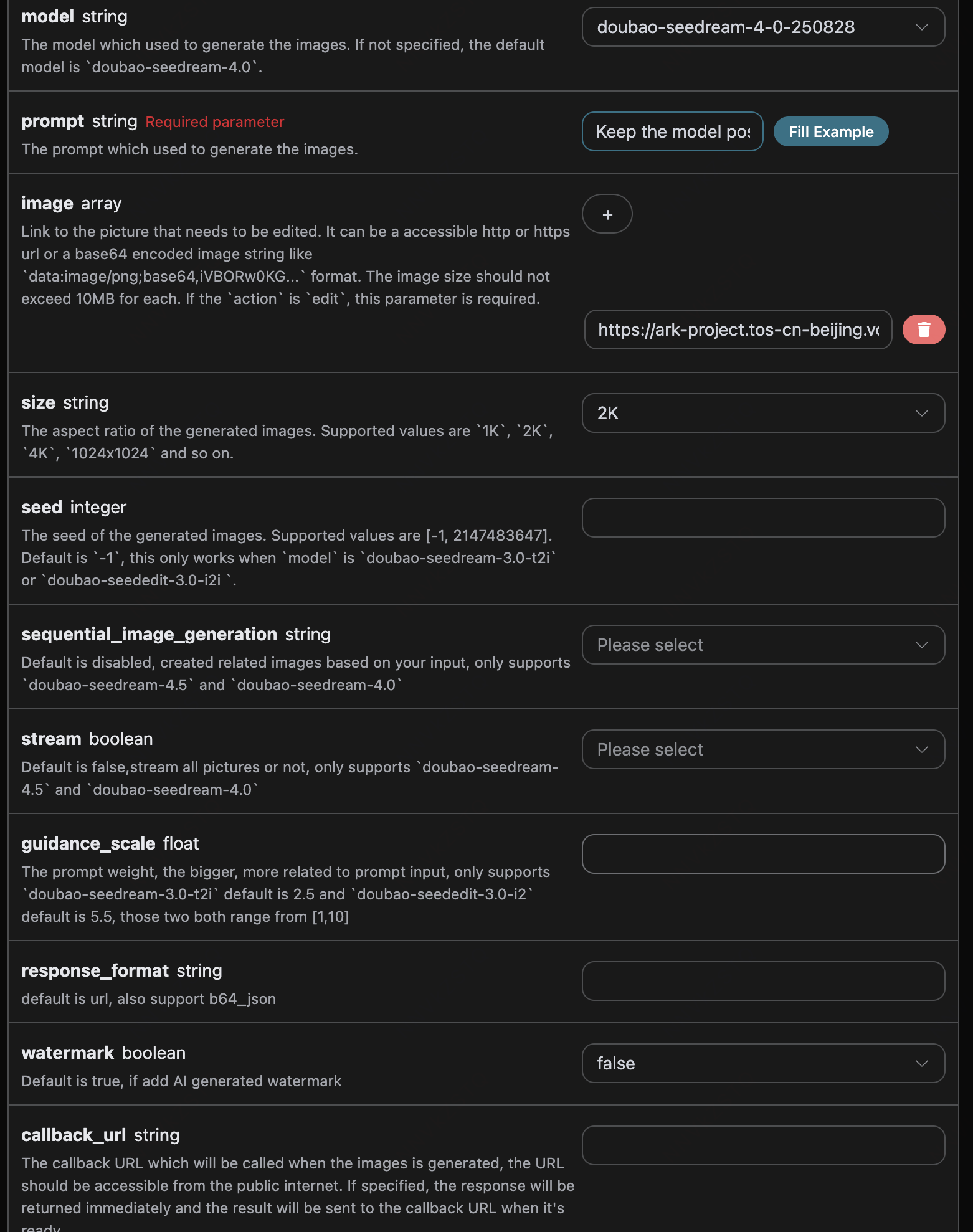
The corresponding code:
import requests

url = "https://api.yxai-tech.top/seedream/images"

headers = {
    "accept": "application/json",
    "authorization": "Bearer {token}",
    "content-type": "application/json"
}

payload = {
    "model": "doubao-seedream-4-0-250828",
  "prompt": "Keep the model pose and the liquid garment flowing shape unchanged. Change the clothing material from silver metal to completely transparent water (or glass). Through the liquid flow, the details of the model skin are visible. The light and shadow effect shifts from reflection to refraction.",
  "image": ["https://ark-project.tos-cn-beijing.volces.com/doc_image/seedream4_5_imageToimage.png"],
  "size": "2K",
  "watermark": False
}

response = requests.post(url, json=payload, headers=headers)
print(response.text)
Click Run, and you will find that a result is returned immediately, as shown below:
{
    "success": true,
    "task_id": "c9aaffa2-b8ac-40ff-8468-43e77cb9ddde",
    "trace_id": "131a40c3-2eaf-44c9-af28-c9b408577286",
    "data": [
        {
            "prompt": "Keep the model pose and the liquid garment flowing shape unchanged. Change the clothing material from silver metal to completely transparent water (or glass). Through the liquid flow, the details of the model skin are visible. The light and shadow effect shifts from reflection to refraction.",
            "size": "2048x2048",
            "image_url": "https://platform.cdn.acedata.cloud/seedream/3e88db7e-4771-4f6a-adbd-5ae4590c5d59.jpg"
        }
    ]
}
As you can see, the generated result is an edited version of the original image, similar to the result above.
¶ Layer Decomposition (Seedream 5.0 Pro)
Layer decomposition splits an input image into one base image and up to 16 independently editable transparent PNG layers. The following request allows the model to automatically identify the main elements. If you need to specify elements, you can add a prompt or use normalized <bbox> coordinates in the prompt.
curl -X POST 'https://api.yxai-tech.top/seedream/images' \
-H 'accept: application/json' \
-H 'authorization: Bearer ${token}' \
-H 'content-type: application/json' \
-d '{
  "model": "doubao-seedream-5-0-pro-260628",
  "image": "https://example.com/poster.png",
  "layer_decomposition": true,
  "size": "2K",
  "watermark": false
}'
The returned data is arranged from bottom to top according to z_index. The base image has a z_index of 0. The layers also include name, description, and bounding_box.absolute/normalized. When reconstructing the image using absolute coordinates, scale each layer to [right-left, bottom-top], position it at [left, top], and then stack the layers in ascending order of z_index. If any layer fails to generate, the entire decomposition task fails.
¶ Streaming Output
When stream: true is set for Lite/4.x, the request header should use accept: application/x-ndjson. The API returns image_generation.partial_succeeded or image_generation.partial_failed line by line, and finally returns a unique image_generation.completed event along with the final usage. Billing is triggered only once when the completion event occurs. Streaming mode cannot be used together with async or callback_url.
¶ Asynchronous Callback
Since the SeeDream Images Generation API takes a relatively long time to generate images, approximately 1–2 minutes, if the API does not respond for an extended period, the HTTP request will remain connected, resulting in additional system resource consumption. Therefore, this API also provides support for asynchronous callbacks.
The overall process is as follows: When the client initiates a request, it additionally specifies a callback_url field. After the client initiates the API request, the API immediately returns a result containing a task_id field, which represents the current task ID. When the task is completed, the generated image result is sent to the callback_url specified by the client in the form of a POST JSON request. This also includes the task_id field, allowing the task result to be associated through the ID.
If you do not have a publicly accessible URL for receiving callbacks, you can also omit callback_url and set the async field to true in the request. In this case, the API will also immediately return a task_id, but will not push the result. You need to use that task_id to call the /seedream/tasks endpoint and poll the task status to obtain the final result.
Next, let's understand how to perform this operation through an example.
Click Run, and you will find that a result is returned immediately, as shown below:
{
  "task_id": "c9aaffa2-b8ac-40ff-8468-43e77cb9ddde"
}
The content is as follows:
{
    "success": true,
    "task_id": "c9aaffa2-b8ac-40ff-8468-43e77cb9ddde",
    "trace_id": "131a40c3-2eaf-44c9-af28-c9b408577286",
    "data": [
        {
            "prompt": "Keep the model pose and the liquid garment flowing shape unchanged. Change the clothing material from silver metal to completely transparent water (or glass). Through the liquid flow, the details of the model skin are visible. The light and shadow effect shifts from reflection to refraction.",
            "size": "2048x2048",
            "image_url": "https://platform.cdn.acedata.cloud/seedream/3e88db7e-4771-4f6a-adbd-5ae4590c5d59.jpg"
        }
    ]
}
As you can see, there is a task_id field in the result, and the other fields are similar to those above. The task can be associated through this field.
¶ Error Handling
When calling the API, if an error occurs, the API will return the corresponding error code and message. For example:
400 token_mismatched: Bad request, possibly due to missing or invalid parameters.400 api_not_implemented: Bad request, possibly due to missing or invalid parameters.401 invalid_token: Unauthorized, invalid or missing authorization token.429 too_many_requests: Too many requests, you have exceeded the rate limit.500 api_error: Internal server error, something went wrong on the server.
¶ Error Response Example
{
  "success": false,
  "error": {
    "code": "api_error",
    "message": "fetch failed"
  },
  "trace_id": "2cf86e86-22a4-46e1-ac2f-032c0f2a4e89"
}
¶ Conclusion
Through this document, you have learned how to use the SeeDream Images Generation API to generate images by entering prompts. We hope this document helps you better integrate and use this API. If you have any questions, please feel free to contact our technical support team.